
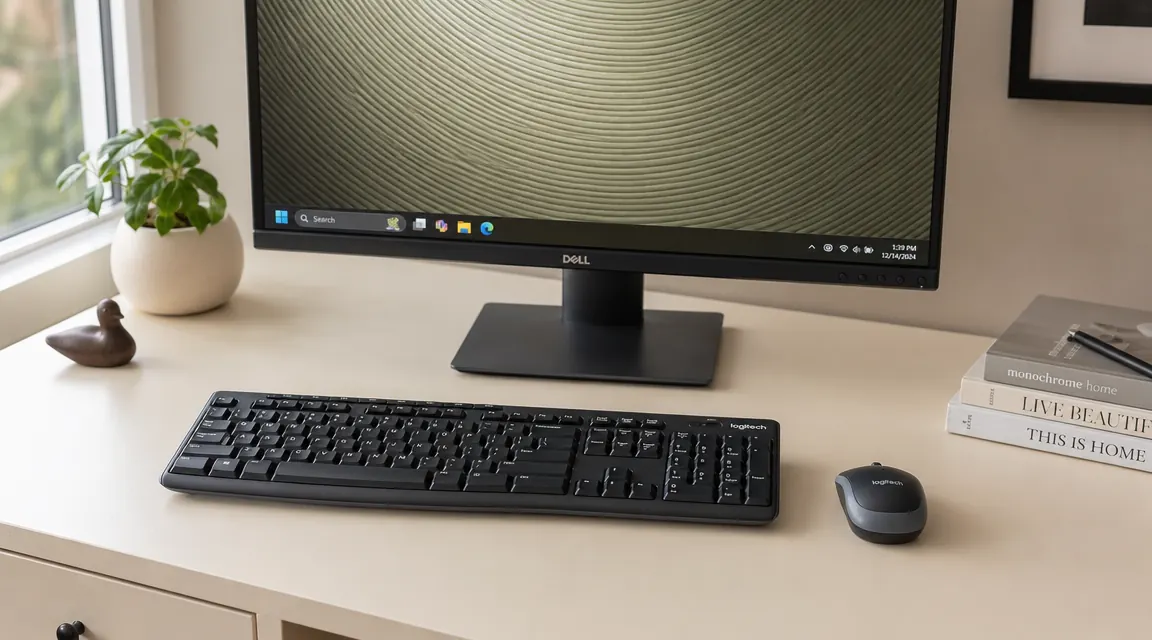
Let me tell you what the listing does not say. It does not say the keys feel hollow when you bottom them out. It does not say the mouse is sized for medium-to-large hands and will feel too wide for people with smaller hands. It does not mention that you get one USB receiver and if that receiver goes missing, your combo is finished, because the MK270 does not use Logitech's Unifying system and you cannot swap in another receiver. And it says nothing about the fact that if you are on a Mac, you are working around a keyboard that was not designed with your OS in mind. I am going to say all of those things. Then I am going to tell you I still recommend it, and explain exactly where that recommendation has limits.
I have used the MK270 on two different setups over the past couple of years. Once for a secondary desk that needed a functional combo without me caring much about it, and once on a road setup where I needed something small, wireless, and cheap enough to not stress about in a bag. I know what this thing is. That is the point of this review.
The Quick Verdict
A no-fuss wireless combo that does exactly what it says, as long as you are on Windows, your hands are medium-sized or larger, and you are not bothered by AA batteries.
Amazon Check Today's Price →If you need a clean, reliable wireless combo at a budget price, the MK270 is probably already the right answer.
Over 118,000 reviews and a 4.5-star average. At this price, that track record is hard to argue with. Check today's price on Amazon and confirm it is in stock before you leave this page.
Amazon Check Today's Price on Amazon →How I Have Used It
The first time was at a guest desk in a spare bedroom. Someone needed a wireless setup so there were no cables running across the surface. I ordered the MK270, set it up in five minutes, and left it there. That was about eighteen months ago. The only thing that has happened since is one AA swap in the mouse. The keyboard is still on its original batteries. That is not a typo.
The second time I put this combo in rotation was on a road setup, plugged into a small portable monitor. I needed something that fit in a laptop sleeve pocket, connected without any pairing ceremony, and did not require an adapter chain to work. The nano receiver goes in, Windows sees it immediately, no driver install needed. That is honestly the strongest card this thing holds: zero setup friction.
What I noticed across both runs was that the MK270 is relentlessly functional and almost entirely without personality. You do not fall in love with it. You just use it and forget it is there, which for a keyboard and mouse is actually a high compliment.
The Keys Feel Cheap. They Work Fine Anyway.
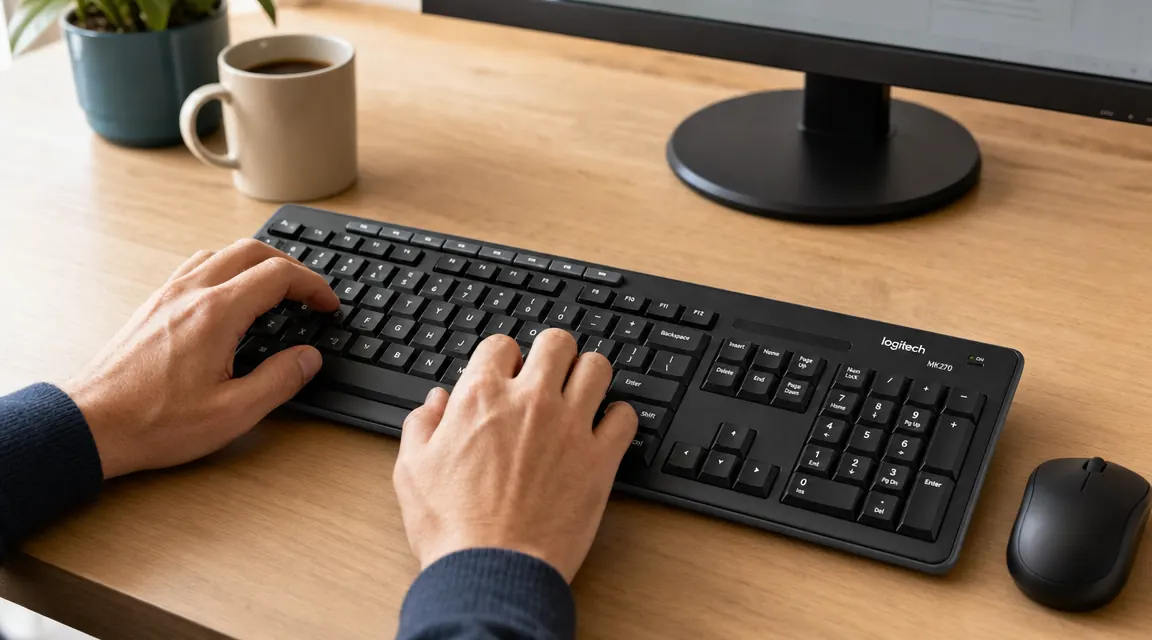
Here is the honest thing about the keyboard. The keys have a slightly hollow, clacky bottom-out that is nothing like a mechanical keyboard and nothing like the scissor switches on a good laptop. It feels like what it is: a membrane board at a budget price. If you type for a living and you care about feel, this will register as tolerable at best. I would not want it as my only keyboard if I write eight hours a day.
But here is what actually matters. It does not miss keystrokes. The 2.4 GHz signal is stable across a normal desk distance and I never had a dropped input in either use case. Actuation is consistent. The function row has media controls and a calculator shortcut baked in, which are genuinely useful on a secondary desk where you have not set up custom hotkeys. Key travel is nothing to celebrate but it is predictable and even, which is what determines whether you make typing errors, not the feel alone.
The layout is full-size with a number pad. If you share a desk with anyone doing data entry, the number pad earns its keep. The keyboard is larger than compact alternatives, so if you are tight on desk space you may not love the footprint. But for a typical desk with a monitor and some room to work, the size is fine. Do not buy this expecting mechanical-switch satisfaction. Buy it expecting a reliable, quiet, get-out-of-the-way keyboard and it will deliver.
You do not fall in love with the MK270. You just use it and forget it is there. For a keyboard and mouse, that is actually a high compliment.

The Mouse: Sized for Medium-to-Large Hands. Small Hands Will Notice.
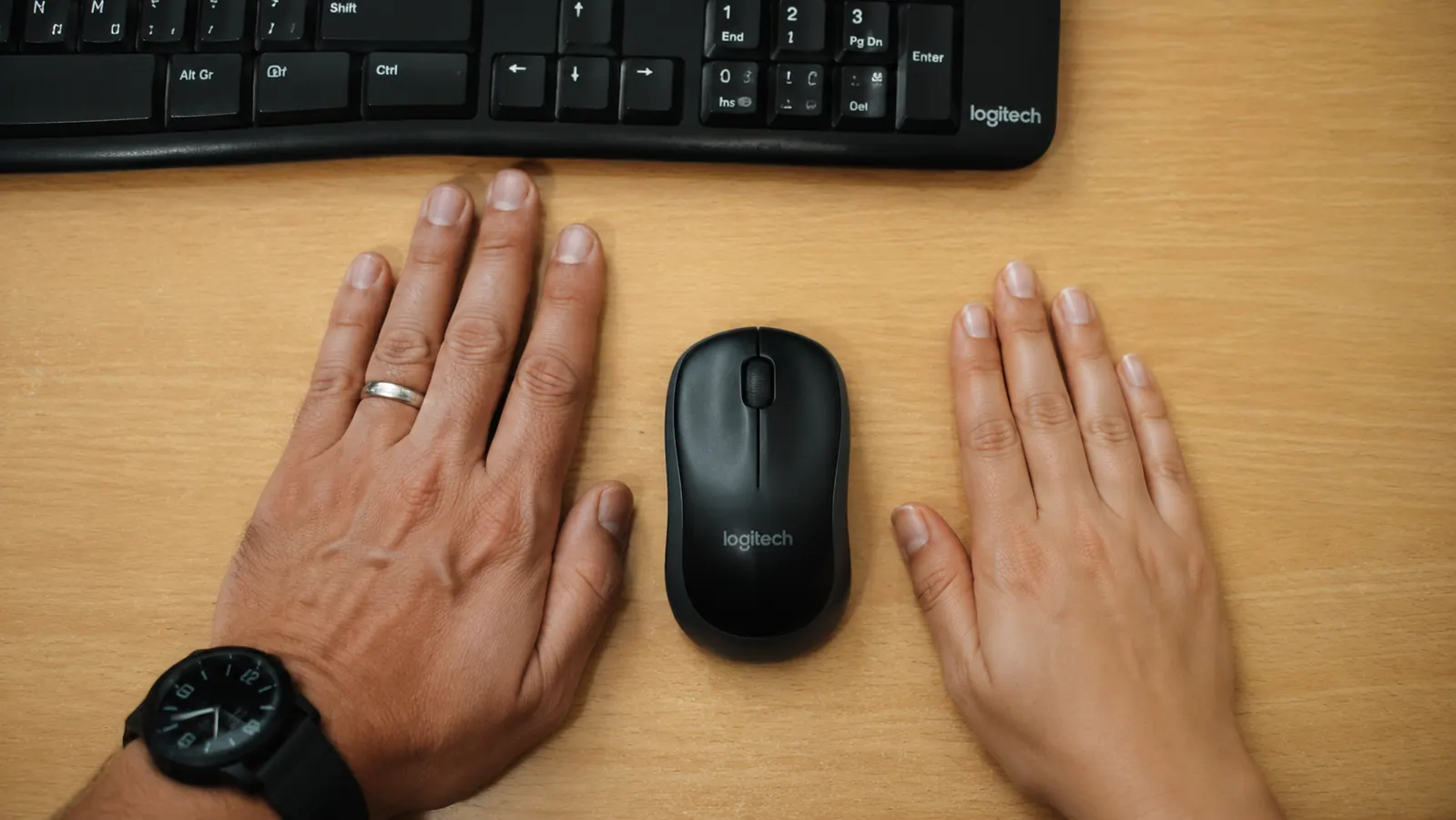
The MK270 mouse is on the wider side of budget wireless mice. Logitech built it for a palm grip on a medium or larger hand. If your hand measures roughly 17 centimeters or longer from wrist to middle fingertip, this mouse will feel natural. The back of the mouse fills your palm and the buttons land where you expect them with light finger extension.
If you have smaller hands, the experience flips. The mouse body is too wide to palm comfortably and too shallow to claw grip without your fingers dangling over the front edge. I have watched people with smaller hands try this mouse for an extended session and reach for something else within the hour. If you are buying for yourself and you know your hands run small, look at the Logitech M185 instead. If you are buying for a shared setup and you do not know hand sizes in advance, most average-to-large adult hands will be fine. But it is the one physical characteristic of this product that will not suit everyone.
Tracking is optical at 1000 DPI, non-adjustable. On a desk surface or a basic mouse pad it is clean and consistent. On a glossy or glass surface it can stutter. Keep a small desk pad under it and you will not have problems. The scroll wheel is functional, the clicks are firm, and there are no side buttons. For email, documents, and spreadsheet work it covers everything you need. For extended mousing sessions with lots of navigation, the absence of a thumb button will eventually get annoying.
One USB Receiver, No Logitech Unifying. That Matters More Than It Sounds.
The MK270 uses a dedicated 2.4 GHz nano receiver. One receiver, both devices paired to it from the factory. That is convenient. What it is not is a Logitech Unifying receiver. The Unifying system lets you connect up to six Logitech devices to a single receiver, which is useful if you already own Unifying gear and want to minimize USB port usage. The MK270 is not compatible with that system. Its receiver is exclusive to this combo and cannot be replaced by a Unifying receiver you already own.
The practical consequence: you use one USB-A port for this combo, full stop. If you have a laptop with two USB-A ports and you need both, that is a real constraint. On a desktop with a hub, it is a non-issue. Just know going in that this is a standalone, closed system.
The bigger risk is losing the receiver. The nano receiver is small enough to disappear into a drawer without a trace. Because the MK270 does not use Unifying, you cannot grab a spare Logitech dongle from your drawer to pair it to. If you lose it, the combo is non-functional and you are buying a new one. Logitech does not sell standalone replacement receivers for the MK270. Keep it plugged in at all times on a fixed desk. If you use it on the road, designate one specific spot in your bag for it and do not deviate from that habit.
AA Batteries. No Apology, No Charging Port.
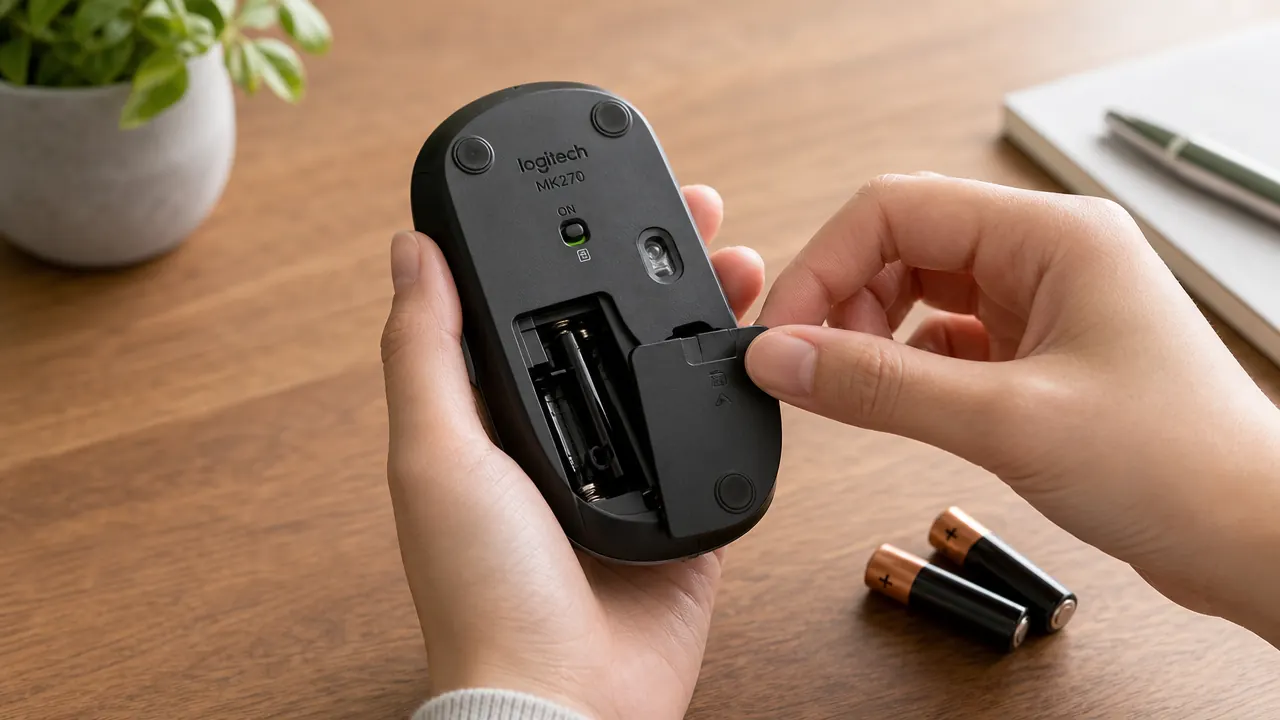
The MK270 runs on AA batteries. Two in the keyboard, one in the mouse. Logitech claims up to 24 months on the keyboard and 12 months on the mouse. In my experience the keyboard tracks close to that claim. The mouse lands somewhere around 8 to 10 months of regular use, which is still long enough that battery management is not a daily thought.
Whether this bothers you depends entirely on how you feel about AA batteries. If you have a set of rechargeable AAs and a charger on your desk already, you are set. If you would rather plug in a USB cable every couple of weeks and never think about it, this combo is the wrong buy. Logitech's MX Keys combo charges over USB-C. The MK270 trades rechargeable convenience for a lower upfront cost and a smaller number of failure modes. There is no charging circuit to break, no cable to lose, and no forgetting to charge before a long work session.
I keep a four-pack of AAs in my desk drawer. In two years across both setups I have used three of them. That is a pretty low-stakes maintenance cycle, and it means the product still works on batteries you pick up at any gas station when you are traveling.
If You Are on a Mac, Read This Before You Order
Logitech makes this clear in their listing and I will echo it directly: the MK270 is built for Windows. The keyboard layout does not include a dedicated Command key. The modifier keys are labeled for Windows workflows. The function row shortcuts map to Windows applications. The keyboard will connect via the nano receiver and type letters on a Mac without issue, but the labeled shortcuts are largely useless for macOS and there is no hardware way to fix that.
If you are on macOS as your primary OS, this is not the right combo. The Logitech MK295 or the MK470 both have better macOS consideration and are worth the small premium. If you switch between Windows and Mac on different machines, the mismatch becomes friction every time you sit down at the Mac side.
On Windows, everything works out of the box without any software. Plug in the receiver, wait three seconds, type. No driver install, no app required. That plug-and-play simplicity is a genuine feature. On a machine where you do not want to install software or deal with configuration, the MK270's reliance on native HID support is a quiet advantage that gets overlooked in most reviews.
What I Liked
- Zero setup on Windows: plug in the nano receiver and both devices work immediately with no software required
- Full-size layout with number pad at a budget price, which most budget combos skip
- Keyboard battery life routinely reaches 18 to 24 months on a single set of AAs
- Stable 2.4 GHz connection with no noticeable input lag at typical desk distances
- One receiver covers both devices, keeping USB footprint to a single port
- Price is low enough that treating it as replaceable or redundant hardware carries no regret
Where It Falls Short
- Membrane keys feel hollow at bottom-out: fine for casual use, frustrating for heavy typists or anyone coming from a mechanical keyboard
- Mouse is sized for medium-to-large hands and will feel too wide for people with smaller hands
- No Logitech Unifying support: the dedicated receiver cannot pair to other Logitech devices and cannot be replaced by a Unifying dongle you already own
- Losing the nano receiver makes the combo non-functional and Logitech does not sell a standalone replacement
- No rechargeable batteries: you are buying AAs indefinitely
- No Mac-friendly key labeling: Windows-only layout makes macOS workflows awkward
Who This Is For
This combo earns its spot on a Windows desk where simplicity and reliability matter more than premium feel. The person it fits best is setting up a secondary workstation, a shared home office computer, a travel kit that is cheap enough to replace if lost, or a first wireless setup where they do not want to spend much figuring out whether wireless is even for them. It is also a strong call for people who already manage AA batteries and want to maximize how long they go between equipment purchases. If you are equipping a home office on a real budget, you are on Windows, and your hands are medium-sized or larger, stop overthinking it. This is what to buy.
Who Should Skip It
If you have ever used a mechanical keyboard and the key feel matters to you, the MK270 will disappoint. If your hands run small, the mouse will feel too wide from day one and you will replace it within a month. If you are on macOS and you care about your function row doing anything useful, look at a Mac-oriented combo. If you already use Logitech Unifying peripherals and you want to keep all your devices on one receiver, the MK270 will cost you a separate USB port because its dedicated dongle does not work with the Unifying system. And if losing a small piece of hardware causes you real stress, the single non-replaceable receiver setup will eventually give you a bad afternoon. None of these are catastrophic flaws. They are the honest shape of what this product is. For a deeper look at how it performs over two years of daily use, the long-term MK270 review on this site covers that ground. And if you are comparing it to the MK345, the comparison article breaks down exactly what the small price jump gets you.
Still the right answer for most Windows home offices on a budget. Just go in with clear eyes.
The MK270 has 118,000-plus reviews for a reason. If none of the trade-offs in this review apply to your setup, it is almost certainly the best use of this budget. Check today's price on Amazon and confirm it ships Prime.
Amazon Check Today's Price on Amazon →