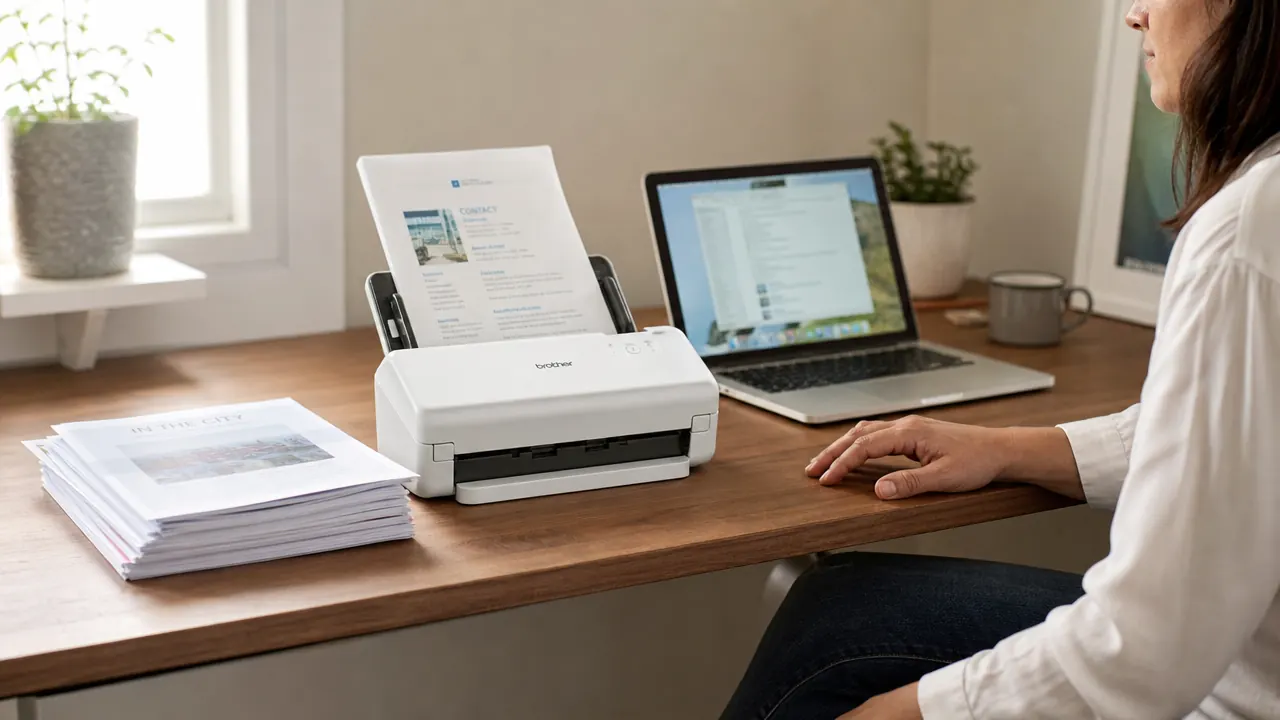
I put off going paperless for about three years. I had the folder system planned. I had a naming convention drafted. What I did not have was a scanner that made the actual act of scanning fast enough to bother with on a random Tuesday afternoon. The Epson WorkForce ES-50 changed that. I picked it up about eight months ago after a pile of unsorted receipts, insurance documents, and contractor invoices quietly took over my inbox tray. The ES-50 is now the thing I reach for every time a piece of paper lands on my desk. That said, it is not a perfect device, and if you are on a Mac running a recent OS version, there is a setup wrinkle worth knowing about before you buy.
This review covers what eight months of real use actually looks like: scanning grocery receipts for expense tracking, running quarterly insurance statements, feeding in single-page contracts, and the occasional magazine clipping. I will cover the software, OCR accuracy, the single-sheet feed limitation, and the Mac driver compatibility issue that accounts for a meaningful slice of the one-star reviews you will see on Amazon.
The Quick Verdict
A genuinely portable, single-cable scanner that makes the paperless habit stick for home office users who scan a handful of pages at a time. The scan speed and OCR software are better than you expect at this size. The single-sheet feed and the Mac driver friction on newer OS versions are the two real friction points. Neither is a dealbreaker if you know about them going in.
Amazon Check Today's Price →Your paper pile is not going to sort itself. Here is the scanner that makes five minutes of daily scanning actually doable.
The Epson ES-50 is USB-powered, no power cord, and fits in a drawer when you are done. Check today's price on Amazon before you buy anywhere else.
Amazon Check Today's Price on Amazon →How I Have Been Using It
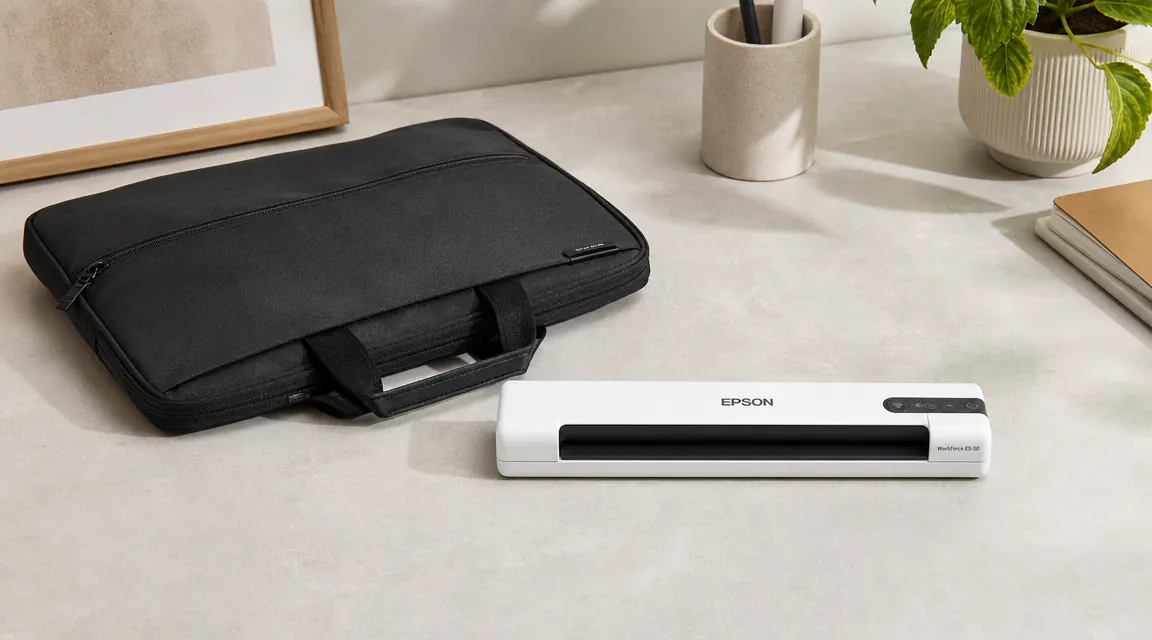
My home office is a twelve-by-fourteen room with more gear than the square footage probably warrants. No room for a flatbed scanner or an all-in-one printer I would use three times a year. The ES-50 sits in the back corner of my desk, or in the shallow drawer below it when I need the surface. It weighs about eleven ounces and is roughly the footprint of a thick hardcover book laid flat. It is, genuinely, small.
My scan routine is simple. A few times a week, usually after mail comes in, I feed documents one at a time into the ES-50's top slot and let Epson ScanSmart sort them into a folder. Once a month I run through receipts from the past thirty days in a batch that exports to searchable PDF. At the end of each quarter I process insurance renewals and contractor agreements. I am scanning forty to sixty pages a month, which sits right in the middle of what this scanner is built for.
Setup on my Windows machine took about eight minutes from box to first scan. You install ScanSmart, plug in the single USB-C cable, and you are done. No power adapter. No second cable. No driver disk. That single-cable setup is the detail I keep coming back to when I describe this to people. It sounds minor, but it made the scanner feel like a tool I would actually use rather than a device I had to prepare to use. Mac setup is a different story, and I cover that below.
Scan Speed and the Single-Sheet Feed
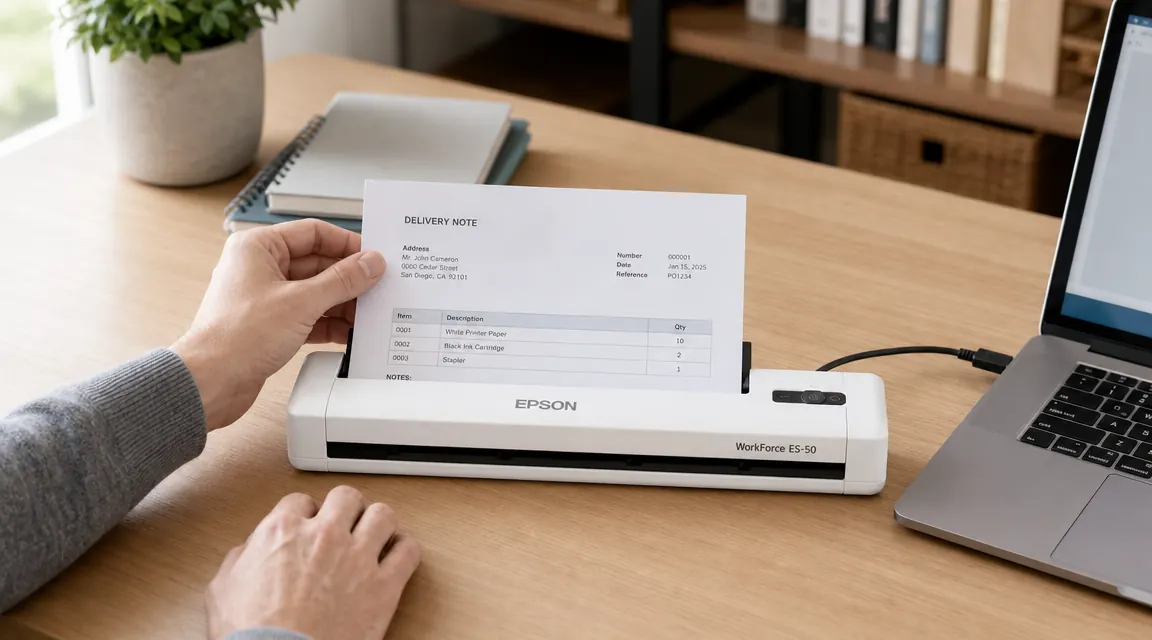
Epson rates the ES-50 at up to 7.5 pages per minute in black and white and about 4 pages per minute in color. In practice, scanning a single letter-size page at 300 dpi color takes roughly eight seconds from the moment you insert the page to when ScanSmart shows a preview. For a one-at-a-time workflow, that feels fast. You can push the next page in before the first one finishes processing, and the scanner queues them correctly.
What the speed cannot compensate for is the manual single-sheet feed. There is no document tray where you load a stack and walk away. You feed one page, the scanner pulls it through, you retrieve it from the front exit slot, and you feed the next one. For three to six pages at a time, this is fine. For a thirty-page contract, that is thirty individual insertions. It is worth knowing your use case before you commit. If you need to process multi-page documents unattended, look at the Brother DS-740D or a scanner with a real automatic document feeder. My usage is mostly short batches, so the single-sheet feed has not been a practical problem for me.
Scan Quality and OCR
At 300 dpi, the default for document scanning, text comes out clean and sharp. I have scanned thermal receipts from grocery stores, printed invoices, handwritten notes on lined paper, and the occasional newspaper clipping. Text is consistently legible. Colors in color mode are accurate enough for document purposes, though I would not use this scanner if faithful color reproduction of photos mattered to you. The maximum optical resolution is 600 dpi, and at that setting the quality improvement on standard text is marginal compared to the file size increase. Stick to 300 dpi for documents.
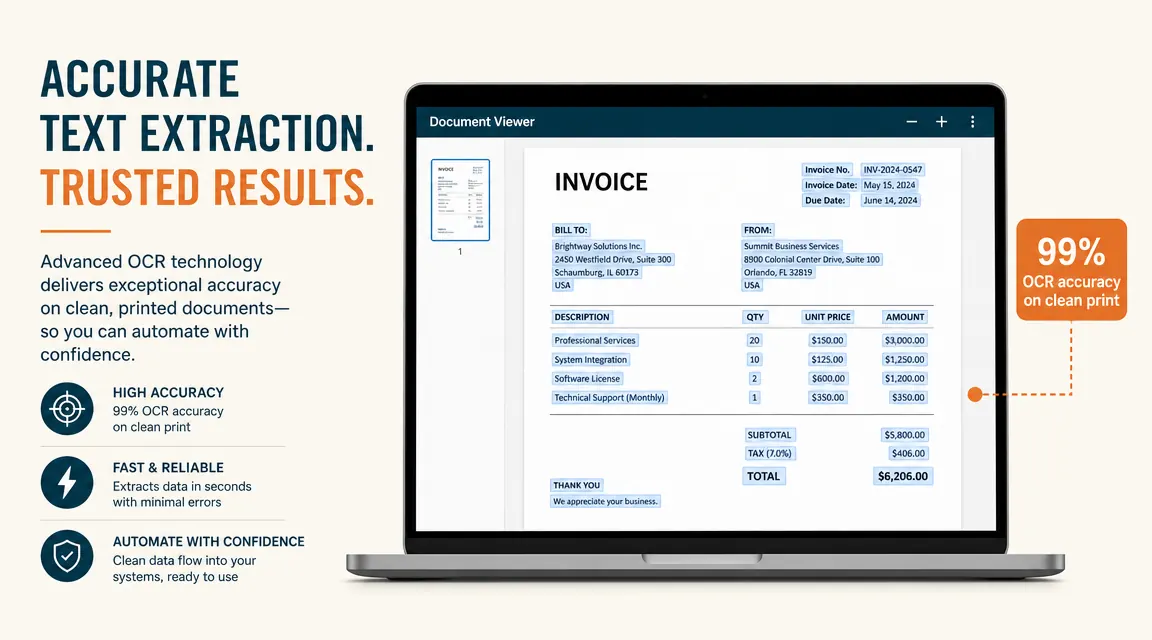
The OCR built into ScanSmart works better than I expected from bundled software. On cleanly printed text, recognition accuracy is close to 99%. Handwritten notes are hit or miss, which is expected, but for receipts and standard documents the text is searchable and recognition errors are rare enough that I have not felt the need to proofread every scan. I tested it on a page of 8-point fine print from a mortgage disclosure and it handled it correctly. That was the real test I cared about.
The single USB cable is not a marketing detail. It is the reason this scanner actually lives on my desk instead of in a closet.
The Mac Driver Issue: What to Know Before You Buy
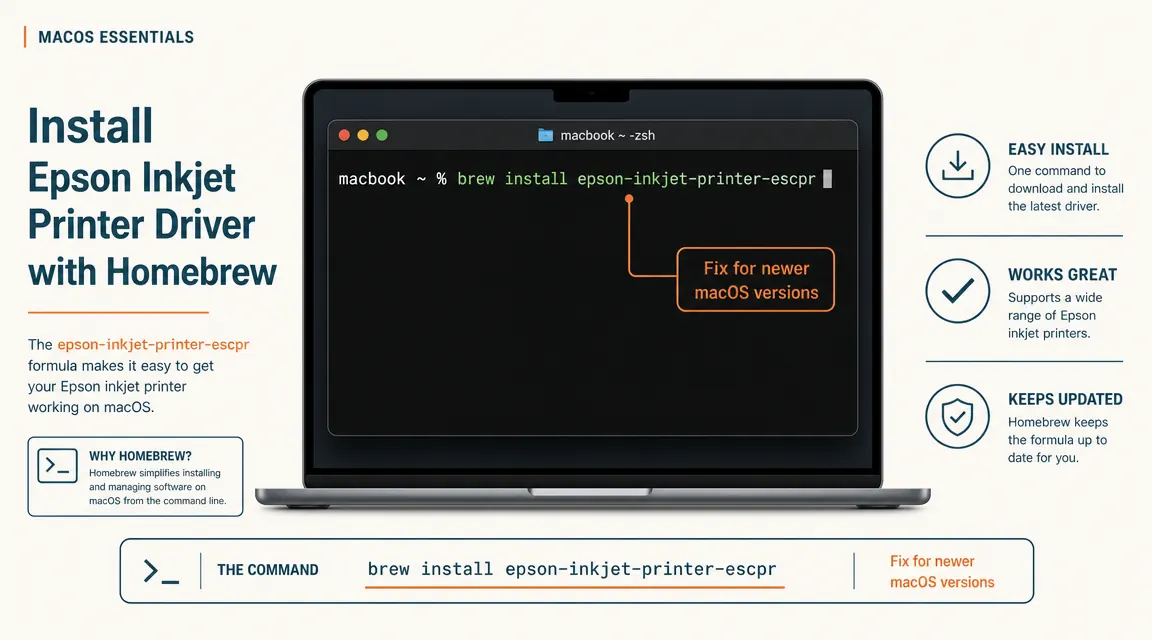
The ES-50 has a 4.3-star average on Amazon, which is the lowest of any product I cover on this site. A meaningful chunk of those one and two-star reviews come from Mac users who hit driver trouble after upgrading to macOS Monterey, Ventura, or Sonoma. The short version: Epson has been slow to update the ES-50's official driver for newer macOS versions, and on some systems the scanner either fails to connect or the scan button on the unit stops working. This is a real issue and I am not going to pretend it is not.
The workaround that fixes it for most people is installing the Epson Scan 2 driver separately from Epson's support page (search 'Epson ES-50 driver' and go to epson.com/support). Some Mac users report that using Apple's built-in Image Capture app works when ScanSmart does not, since it bypasses the Epson software layer entirely and communicates directly with the scanner hardware. Neither of these is a difficult fix, but you have to know they exist. If you buy this scanner expecting plug-and-play on a newer Mac and do not read the fine print, you will be annoyed.
On Windows 10 and Windows 11, I have had zero driver issues across eight months and two reinstalls. The scanner also works without issue on older macOS versions (Big Sur and below). If you are on a newer Mac and willing to spend ten minutes on the driver workaround, the scanner functions normally after that. If you want true plug-and-play on macOS with no setup friction, this is not the device to buy.
ScanSmart Software: Better Than Expected, With One Caveat
ScanSmart is better than most bundled scanner software, which is a low bar, but it clears it by more than I expected. The interface is straightforward. You choose a scan mode, select your destination (PDF, JPEG, or directly to cloud storage), hit scan, and the document shows up. File naming defaults to a date-based format you can override with your own conventions. Cloud integration goes directly to Google Drive, Dropbox, or OneDrive without a separate step, which matters if your paperless system lives in the cloud.
The one thing that took me a few days to figure out was the Auto mode behavior on thermal receipts. ScanSmart defaults to Auto brightness and contrast adjustment. For most documents this is fine, but for receipts with faded thermal printing, Auto sometimes overcorrects and makes the text harder to read than the original paper. Switching to Document mode with manual brightness about ten percent above the default fixed this. It is not obvious from the UI and I wish the documentation mentioned it. ScanSmart also includes a basic document organization view, but I would use it only as a scan-and-forward tool. Build your actual filing system in a cloud service.
Eight Months In: What Held Up and What Did Not
Physical durability has been better than I expected at this size. At eleven ounces and a compact footprint, I assumed there would be some flex or creak in the housing after regular use. There is not. The scanner still feels solid, and the feed mechanism shows no sign of wear after roughly three hundred pages. The bus power has been reliable too. Six months in I had exactly two scan failures, both on a USB hub that also had a hard drive attached. Direct USB port from the laptop has been completely reliable in eight months.
What I did not expect to dislike: the exit situation. Scanned pages drop out the front of the scanner onto your desk surface. If you are scanning multiple pages in a session, you end up with a loose pile in front of the unit that you need to straighten as you go. It is a minor annoyance but it adds up over a longer session. A small fold-out catch tray would have cost Epson almost nothing to include. It is the kind of oversight that makes you wonder if the product team ever actually ran a thirty-page session on their own hardware.
The ES-50 also does not handle thick card stock. Business cards, credit cards, anything significantly stiffer than standard printer paper can jam or feed crooked. For standard office documents, letterhead, and receipts, the feed has been completely reliable. For card-size items, Epson makes a separate card scanner that is the right tool for that job.
For a deeper side-by-side look at how this compares to the Brother DS-740D, which includes duplex scanning and a better Mac driver track record, see the Epson ES-50 vs Brother DS-740D comparison.
What I Liked
- Single USB-C cable powers and connects, no adapter or extra cord needed
- Genuinely compact, fits in a desk drawer or a laptop bag side pocket
- ScanSmart OCR is accurate and sends directly to Google Drive, Dropbox, or OneDrive
- Quiet enough to use in a shared space without disrupting anyone nearby
- Fast single-page scans, around eight seconds per page at 300 dpi color
- Solid build quality for the size, no flex or creak after hundreds of pages
Where It Falls Short
- Mac driver friction on newer macOS versions (Monterey, Ventura, Sonoma) is real and documented
- No automatic document feeder tray, single-sheet feed only
- No duplex scanning, two-sided documents require two separate passes
- No exit tray, scanned pages drop loose onto the desk surface
- ScanSmart Auto mode overcorrects brightness on faded thermal receipts
- Struggles with thick card stock or anything stiffer than standard paper
Who This Is For
The ES-50 is the right scanner if you are a home office user who is tired of a paper pile and needs something you can reach for without a setup ritual. If you scan receipts for tax purposes, keep digital copies of mail and contracts, or just want to kill the inbox tray, this scanner handles that job cleanly. The single-cable setup means it can live on your desk without adding visual or cable clutter. The compact size means it does not compete for real estate with anything else. And the price is honest for what you get.
It is also a strong choice for anyone who moves between workspaces. I bring mine when I travel for work stretches. It goes in the laptop bag, powers off my laptop, and works exactly the same in a hotel room as it does at my desk. If your home office is wherever your laptop is, this scanner follows you there. For more on building a document workflow around it, see the guide on how to scan and organize receipts in a small home office.
Who Should Skip It
If you are on macOS Monterey, Ventura, or Sonoma and want plug-and-play out of the box, I would look at the Brother DS-740D first. It has a cleaner driver track record on recent Mac versions. If you regularly scan large multi-page documents in a single batch, the single-sheet feed will wear on you within a week. If duplex scanning matters for your document type, the ES-50 is the wrong tool regardless of its other strengths. And if you need high-resolution color scanning for photos or detailed graphics, a flatbed is better suited for that. This scanner is optimized for standard office paper, and within that lane it is very good.
If you scan a handful of pages at a time and want a scanner that lives on your desk without eating it, the ES-50 is the one to check.
USB-powered, no driver disk hassle on Windows, and compact enough for the smallest home office. Read the Mac driver note above, then check today's price on Amazon.
Amazon Check Today's Price on Amazon →